 Langless
How to translate a Microsoft Teams meeting in real time
Have a Microsoft Teams meeting with people who speak another language? With Langless you translate your own voice and the other participants’ live, right inside Teams, without a human interpreter. The process is the same as Zoom or Google Meet — only the call app changes. Here’s how.
Ready to speak any language?
Get started free in minutes. Live voice translation, no human interpreter.
Open LanglessWhat you’ll need
- Microsoft Teams on your computer (Windows or macOS).
- Langless in your browser, in Meeting mode.
- An AI provider key (BYOK) — you pay per minute directly to the provider.
- The virtual audio cable, with a guided install inside the app. See what a virtual audio cable is.
👉 Try Langless now — get started free
Step by step to translate Teams
- Open Langless and select Meeting mode.
- Install the virtual audio cable by following the guide (a one-time step).
- Choose your language and the other participant’s language.
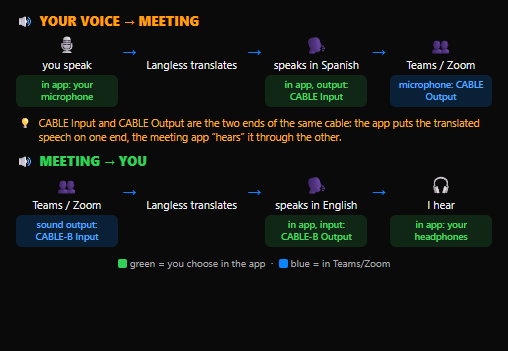
- In Teams, under Device settings, select the virtual cable as the microphone (and as the speaker, per the guide).
- Speak: your voice goes into Teams translated, and what the others say comes back in your language, in real time.

It works for Teams, Zoom and Meet
Langless doesn’t depend on a specific app: it connects audio through a virtual cable, so it works the same in Microsoft Teams, Zoom, Google Meet and any call application on your computer. Learn it once, use it everywhere. See the general guide to translating meetings.
How much it costs
Meeting mode is part of the Langless plans (from US$ 25/month), and the translation runs on your own AI key (BYOK): you pay per minute directly to the provider (from ~US$ 0.03/min), with no markup. It comes to a fraction of the cost of a simultaneous interpreter and it’s available the moment you need it.
Ready to speak any language?
Get started free in minutes. Live voice translation, no human interpreter.
Open Langless✓ 14-day guarantee · ✓ Cancel anytime · ✓ Secure payment via Paddle